Building a campaign
This page is about putting a campaign together: its pages, the questions on them, and the endings it finishes at. What those questions can be is covered in Question types, and making the campaign react to answers is covered in Logic.
Creating a campaign
A new campaign needs only a name. That name is internal: it appears in the campaign list and the breadcrumb, and only your team sees it. The title participants see is a separate setting, in campaign settings.
Nothing you build is visible to anyone until you publish, and even then it needs a distribution before anyone can take part. Until both are true you are working in private, which is the right time to get the structure wrong a few times.
The editor
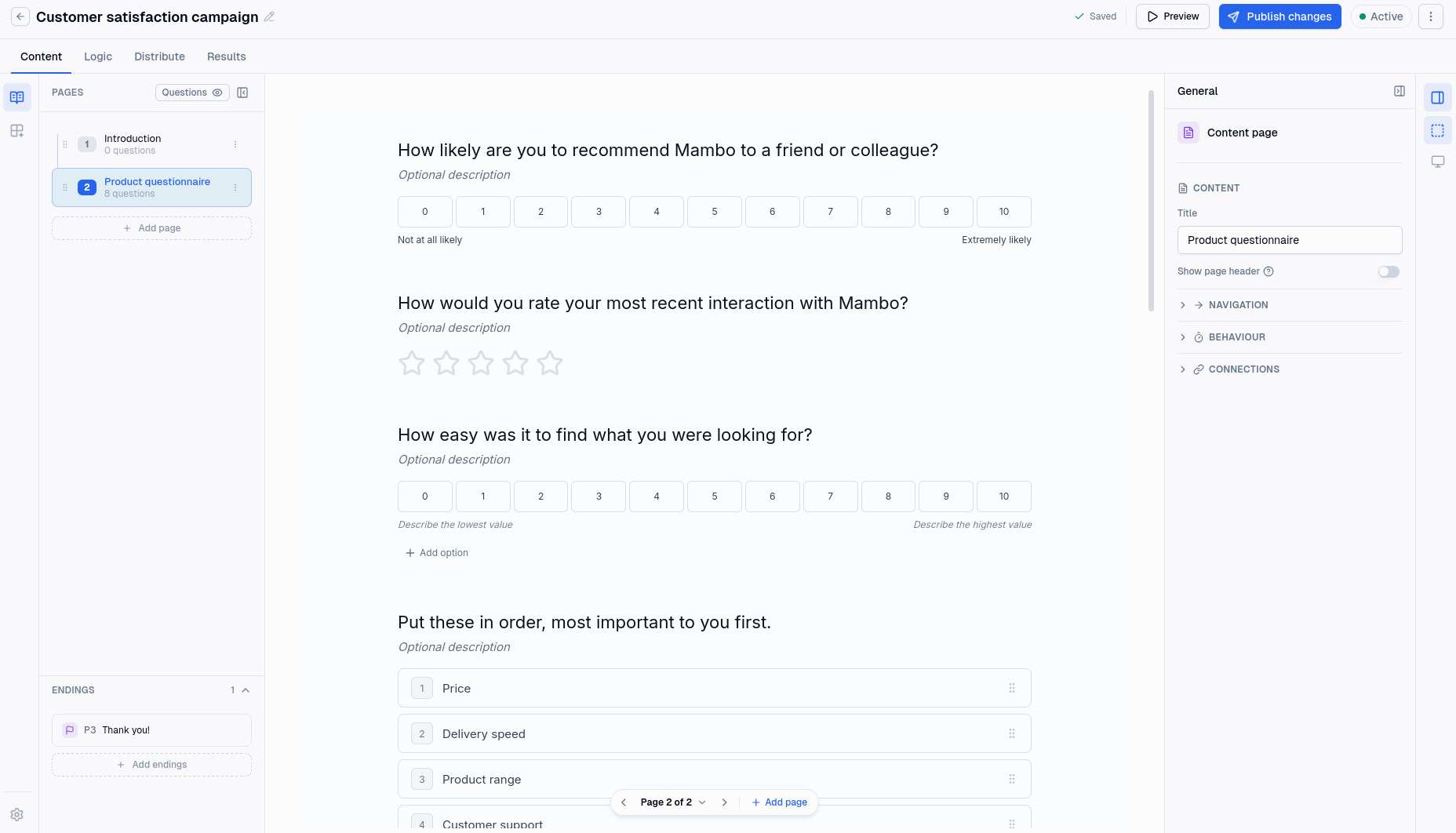
The page list down the left is the campaign's structure: its pages in order, with its endings listed separately below them. Selecting a page opens it.
The canvas in the middle is the page itself, roughly as a participant will see it. You write directly on it, so question wording and option labels are edited in place rather than in a form beside it.
The properties panel on the right holds the settings for whatever is selected, a question or a page. It changes as your selection changes.
Your work is saved as you go. The indicator in the top bar shows when a change has been saved, and everything is saved to a draft rather than to the live campaign.
Pages
A page is one screen. It holds as many questions as you want, including none.
A page with no questions is a content page. Use it for a welcome, a set of instructions, a warning before a sensitive section, or anything else a participant only reads. It is always shown, which is not true of pages with questions on them. See Navigation.
Pages can be added above or below an existing one, dragged into a different order, and deleted. Deleting a page deletes the questions on it.
Page settings
Each page has a few settings of its own.
A page header, a heading and a description shown at the top. It is optional, and off by default.
Button labels for this page, overriding the campaign's defaults. Useful when one page should say something more specific than Next, such as "Start" on a welcome page or "Send my answers" on the last one.
Question order, which controls how the questions on the page are arranged for each participant: left alone, randomised, or reversed. Randomising counters the bias that comes from everyone seeing questions in the same order. You can also limit reordering to a few named questions, so an introductory question stays first while the rest are shuffled beneath it.
A page timer, which limits how long a participant has on this page. See Timers.
Questions
Questions are added from the blocks gallery, which groups them by what they collect: contact details, choices, ratings and rankings, text and numbers, and a few others.
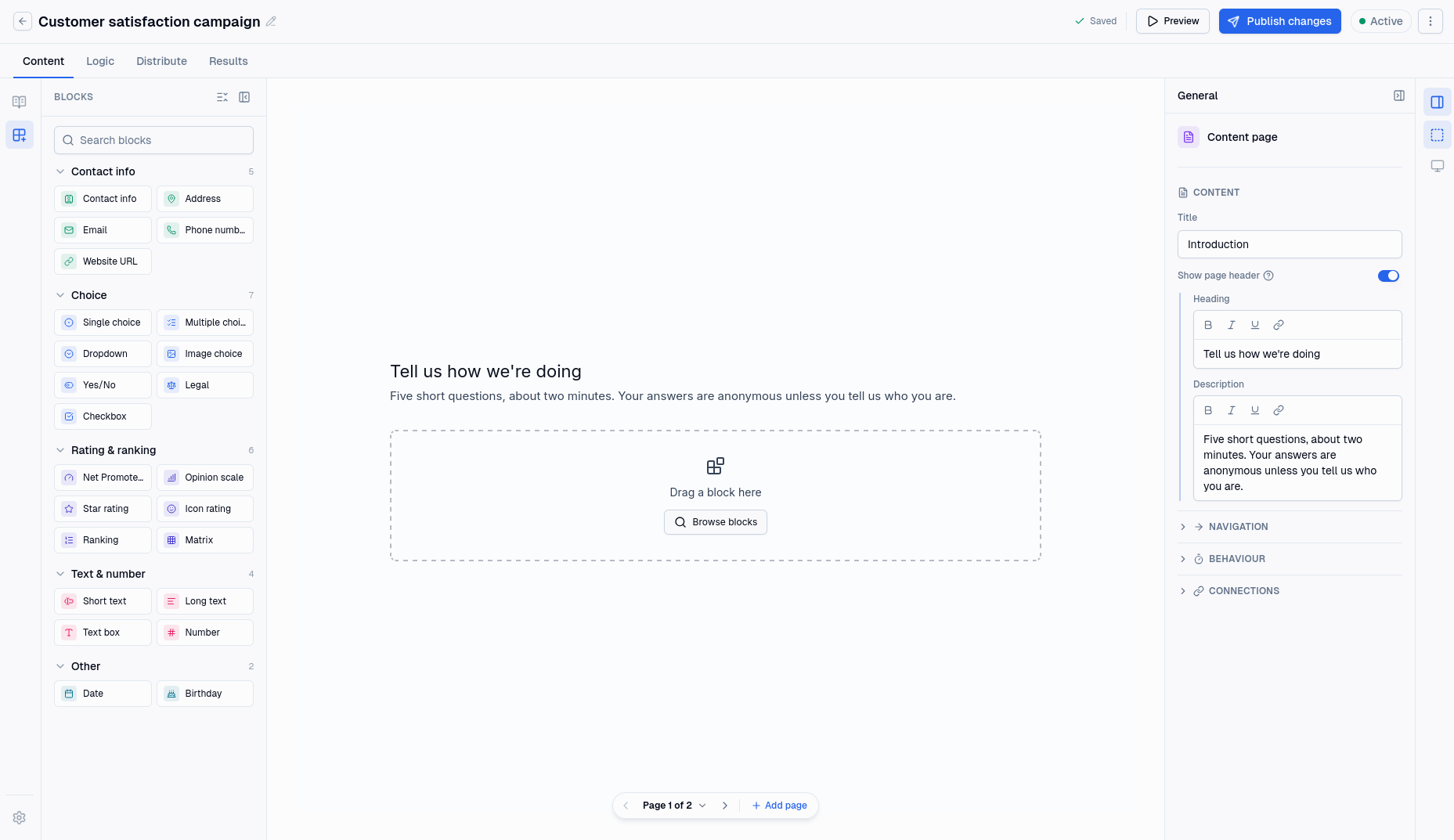
Some entries in the gallery are shortcuts rather than distinct types. Star rating is a rating question fixed to stars; Number is a text question that only accepts numbers. A few are shortcuts to several questions at once: Contact info adds first name, last name and email together, and Address adds the five questions an address needs. Once added, they are ordinary questions you can edit individually.
See Question types for what each one does.
Editing a question
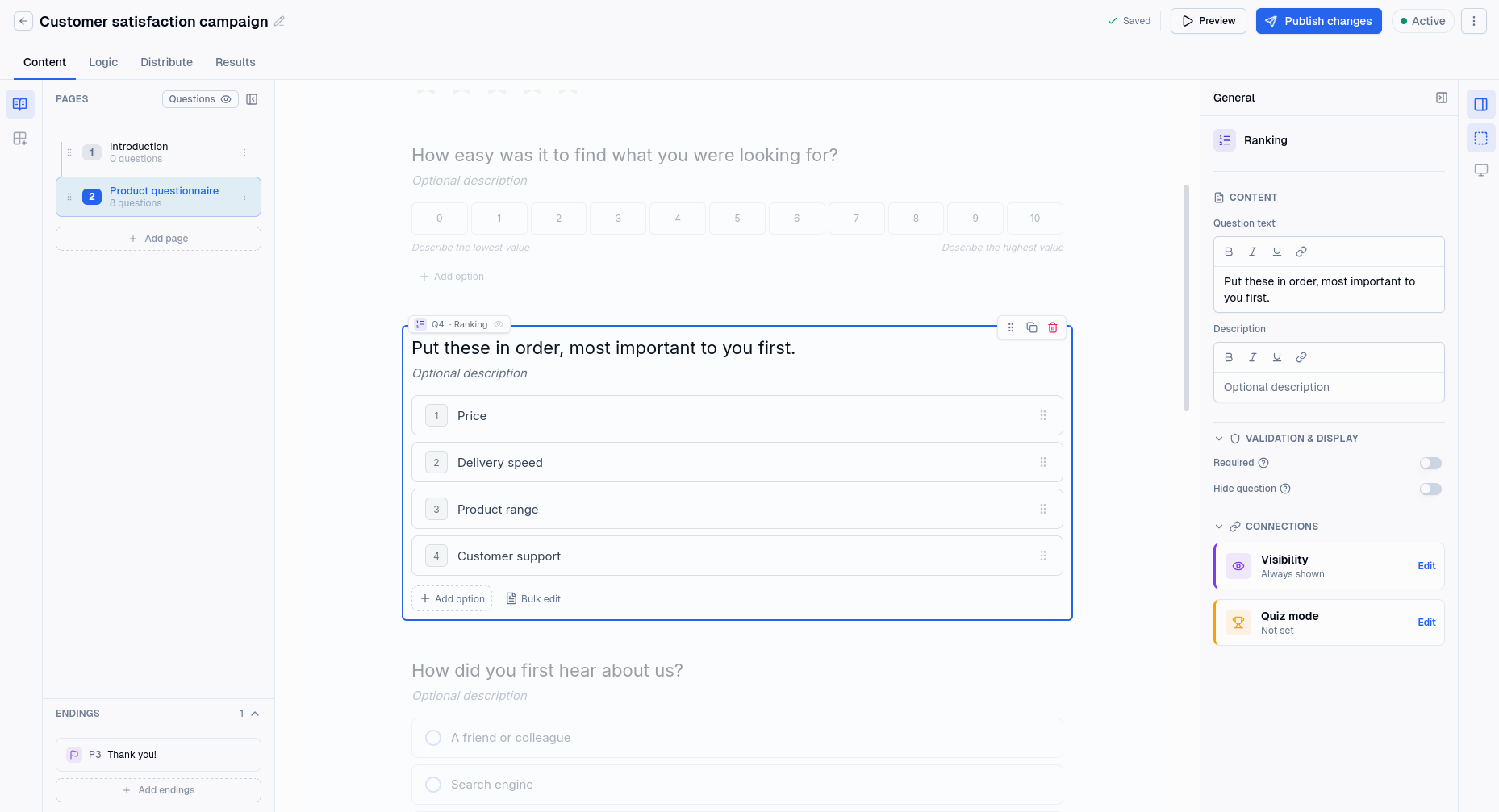
Every question has its text, which is the question itself, and an optional description beneath it for anything that needs explaining.
Beyond that, two settings apply to every type:
Required decides whether a participant may move on without answering. What it starts as depends on the campaign's empty answers setting, and setting it here always wins. See campaign settings.
Hide question starts the question hidden. On its own that makes the question invisible, so it is only useful paired with a rule that reveals it. See Logic.
The rest of the panel depends on the type: options for a choice question, a scale for a rating, a validation rule for a text box.
Answer options
Questions that offer choices are edited on the canvas, one option per row, and can be dragged into a different order. There is a bulk editor for pasting a long list in at once, one option per line, which is quicker than adding twenty rows by hand.
Options have their own ordering setting, with the same choices as questions plus alphabetical sorting, and the same ability to hold some in place while the rest are shuffled. A "None of the above" option is the usual reason to want that.
An image choice question gives every option a picture as well as a label. Clicking the picture opens the media library, which is also where the image on a question itself, an image block and the theme's background images come from.
Individual options can be shown and hidden by logic, in the same way as whole questions.
Endings
An ending is where a session stops, and a campaign can have several. They are listed separately from the pages, because a participant reaches one by finishing or by being sent there rather than by working through them in order.
There are two kinds.
An end page is a closing screen. It has a message, and two optional extras: share buttons, which let participants post the campaign to Facebook, X or LinkedIn, and a call to action, which is a button pointing wherever you like.
A redirect shows nothing at all and sends the participant straight to a URL of yours.
An end page also has a title, which participants never see. It is there to name the ending in the page list, so that a rule pointing at "Disqualified" is readable at a glance.
A campaign needs at least one page before it can be published. It does not need an ending, but a campaign without one finishes on a blank screen. See Navigation.
Trying it out
The preview walks the campaign exactly as a participant would, on your draft, without publishing anything. Answers given in a preview are kept out of your results.
One thing to know before you use it: rewards are real. A preview that reaches a page firing a behaviour awards it for real. See Publishing.