Tags
Tags are powerful tools used to group or segment configuration elements and users within the Mambo platform.
What are tags?
Tags provide a flexible way to organise related items and create personalised experiences for different user segments. They can be applied to various configuration elements and users to control visibility, filtering, and analytics tracking.
Basic grouping
At their simplest, tags help organise related configuration elements. For example:
- Create an Onboarding tag for all rewards in the onboarding process
- Create Experience level and Training level tags to differentiate types of levels
Where tags can be used
Tags enable filtering in multiple areas:
- In administration panel data tables using global filters
- In the profile widget by creating custom tabs based on selected tags
- In widget initialisation for grouping levels
- Through the APIs by supplying tags as parameters (filter for elements with any or all specified tags)
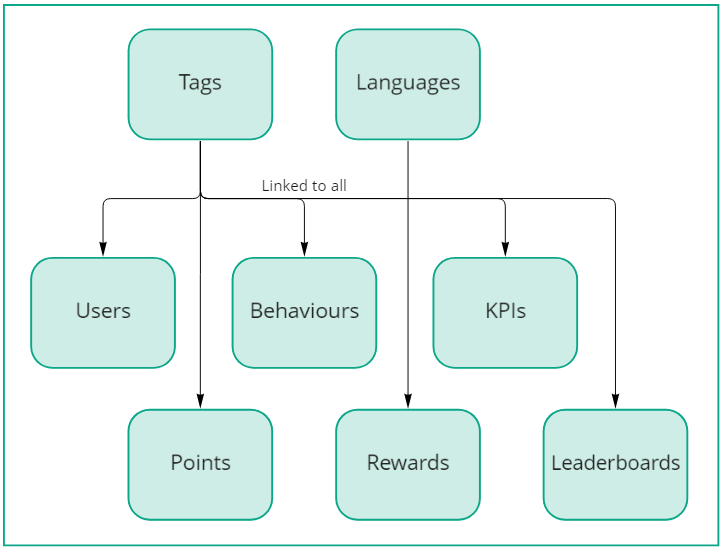
The diagram below illustrates all configuration elements that can have tags associated with them:
Types of tags
Personalisation tags
Personalisation tags create tailored experiences for different user segments. Enable personalisation by checking the "Personalization" option when creating or updating a tag.
Personalisation tags automatically filter what users can see in their profiles. For example:
- A Sales Executive and a Developer will have different behaviours and achievements
- By tagging each group and adding relevant tags to configuration elements, user profiles automatically adjust to show only relevant content
Note
Personalisation tags only control visibility of behaviours and rewards. Users can still perform behaviours and earn rewards unless you enable the Award only if personalisation tags match option in the configuration.
Analytics tracking tags
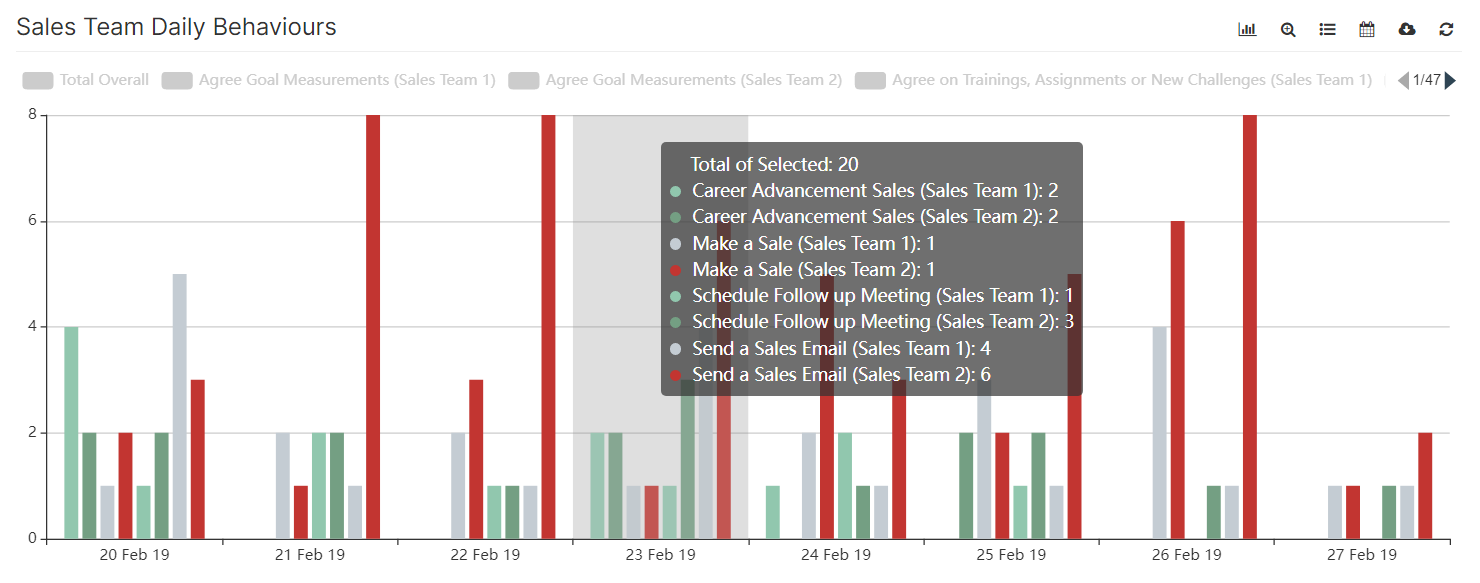
When the "Track in analytics" setting is enabled for a tag, analytics are calculated separately for users with different tags. This allows you to create analytics dashboards with metrics broken down by tag.
For example, you could tag users with "Sales Team 1" or "Sales Team 2". With analytics tracking enabled, you can compare performance metrics between the two teams, as shown below: